Showing posts with label Financial dimension. Show all posts

Tuesday, September 19, 2023

How to create a new custom financial dimension value with description and other parameters via X++

User can add values manually to Custom dimension attribute type only. For all other backing entities it should go via standard table creation, say, new CustTable record, etc.


The easiest way to create a new Custom list dimension value is to use the standard service DimensionValueService as follows. Say, you need to create a new value by using _newProjCategory record fields.

DimensionValueService dimensionValueService = new DimensionValueService();
DimensionValueContract dimensionValueContract = new DimensionValueContract();
dimensionValueContract.parmValue(_newProjCategory.Id);
dimensionValueContract.parmDimensionAttribute(myDimHelper::getProjCategoryAttribute);
dimensionValueContract.parmDescription(_newProjCategory.Name);

dimensionValueService.createDimensionValue(dimensionValueContract);

It creates the display value as its description.


Monday, April 4, 2022

How to resolve reference with a form control value

If you need not just to maintain lookup for a refence group but also to validate a manually input value, you need to implement resolveReference method for the field of the form data source. Say, we want to validate a custom financial dimension value.


You can check resolveReference* methods in EcoResCategory table as a good example.


The most interesting detail for me is the way how the related form control value is found inside of the given reference group.

            /// <summary>
            /// Resolve reference
            /// </summary>
            /// <param name = "_formReferenceControl"></param>
            /// <returns></returns>
            public Common resolveReference(FormReferenceControl _formReferenceControl)
            {
                Common ret;
            
                ret = myAssignedBankAccountDimension.dimensionResolveReference(_formReferenceControl);
            
                return ret;
            }

    public Common dimensionResolveReference(FormReferenceControl _formReferenceControl)
    {
        DimensionAttribute                          dimensionAttribute;
        DimensionAttributeDirCategory               dimAttributeDirCategory;
        DimensionFinancialTag                       dimensionFinancialTag;
        myFinancialDimensionValueFinancialTagView  view;
        myAssignedBankAccountDimension             myAssignedBankAccountDimension;
        DimensionDisplayValue                       dimensionDisplayValue;

        if (!_formReferenceControl || _formReferenceControl.handle() != classNum(FormReferenceGroupControl) )
        {
            throw(error(strFmt("@SYS137393", Error::wrongUseOfFunction(funcName())) ));
        }

        dimensionDisplayValue = _formReferenceControl.filterValue(AbsoluteFieldBinding::construct(fieldStr(DimensionFinancialTag, Value), tableStr(DimensionFinancialTag))).value();
        dimensionDisplayValue = strLRTrim(dimensionDisplayValue);
        
        <..  implement your logic with the display value ...>

Friday, January 22, 2021

D365FO data entities with financial dimension requires special field names

 While creating data entities using financial dimensions, do not forget that those are backed in background by special classes via SysDataEntityPersister class


Those latter help resolving selected values (similar to what we see in segmented entry in forms). 


Each class is meant to serve a particular EDT, for example


/// <summary>
/// The <c>LedgerAccountDimensionDataEntityResolver</c> class resolves data entity ledger account values.
/// </summary>
[
System.ComponentModel.Composition.ExportMetadataAttribute("DimensionSFKType", identifierstr(LedgerDimensionAccount)),
System.ComponentModel.Composition.ExportAttribute("Microsoft.Dynamics.AX.DimensionDataEntitySFKFieldResolver")
]
public class LedgerAccountDimensionDataEntityResolver extends DimensionDataEntitySFKFieldResolver
{
    Name accountStructure;
...


In order to let it work correctly, some fields in your data entity must have particular names.


public class DimensionDataEntityConstants
{
    public static const str HasDimensionDataSourcesCustomPropertyName = '__HasDimensionDataSources__';
    public static const str ProviderCacheName = 'DimensionDataEntitySFKProviderCacheName';
    public static const str AccountStructureSuffix = 'AccountStructure';
    public static const str DisplayValueSuffix = 'DisplayValue';
    public static const str DisplayValueTypeName = 'DimensionDisplayValue';
}


Thursday, July 9, 2020

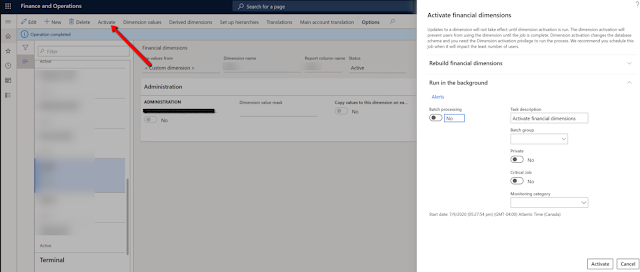
How to activate a financial dimension

First, run the following script over your DB via SQL Management Studio.


update SQLSYSTEMVARIABLES SET VALUE = 1 where PARM = 'CONFIGURATIONMODE'

select value from SQLSYSTEMVARIABLES  where PARM = 'CONFIGURATIONMODE'


Then restart IIS from inside of Visual Studio.


Activate your financial dimension.


Now, run the same script but by setting the variable to zero, and restart IIS again.


update SQLSYSTEMVARIABLES SET VALUE = 0 where PARM = 'CONFIGURATIONMODE'

select value from SQLSYSTEMVARIABLES  where PARM = 'CONFIGURATIONMODE'

Thursday, February 20, 2020

How to replace a financial dimension value in D365

Thanks to Denis Trunin's article, we can easily implement something like this in D365FO.


public static DimensionDefault setValueToDefaultDimension(DimensionDefault _dimensionDefault, RefRecId _dimensionAttributeRecId, DimensionValue  _newDimensionValue)
    {
        DimensionAttributeValueSetStorage   dimStorage;
        DimensionDefault                    newDimensionDefault = _dimensionDefault;
        DimensionAttributeValue             dimensionAttributeValue;
        if (_dimensionAttributeRecId)
        {
            dimStorage = DimensionAttributeValueSetStorage::find(_dimensionDefault);
            if (_newDimensionValue)
            {
                dimensionAttributeValue = DimensionAttributeValue::findByDimensionAttributeAndValue(DimensionAttribute::find(_dimensionAttributeRecId), _newDimensionValue, false, true);
                dimStorage.addItem(dimensionAttributeValue);
            }
            else
            {
                dimStorage.removeDimensionAttribute(_dimensionAttributeRecId);
            }
            newDimensionDefault = dimStorage.save();
        }
        return newDimensionDefault;
    }


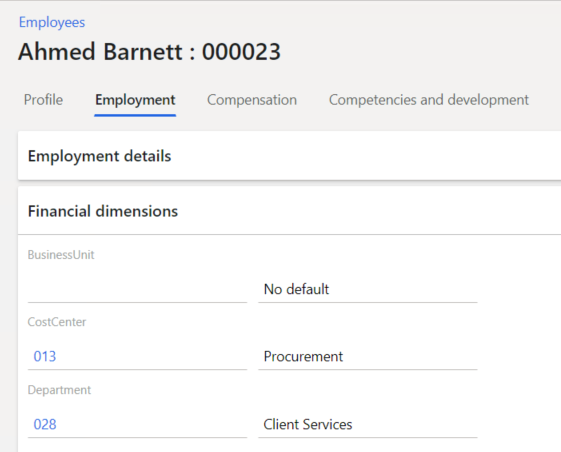
Then, say, we need to replace Department from Operations to Client Services for Ahmed Barnett in USMF.


static void setNewFinDimValueForEmployee(HcmWorkerRecId _worker, CompanyInfoRecId _legalEntity, Name _dimensionName, DimensionValue _dimensionValue)
    {
        HcmEmployment hcmEmployment = HcmEmployment::findByWorkerLegalEntity(_worker, _legalEntity);
        ttsbegin;
        hcmEmployment.selectForUpdate(true);
        hcmEmployment.validTimeStateUpdateMode(ValidTimeStateUpdate::Correction);
        DimensionDefault newDim = DimensionHelper::setValueToDefaultDimension(hcmEmployment.DefaultDimension, DimensionAttribute::findByName(_dimensionName).RecId, _dimensionValue);
        hcmEmployment.DefaultDimension = newDim;
        if(hcmEmployment.validateWrite())
        {
            hcmEmployment.update();
        }
        ttscommit;
    }
Here you go.


public static void main(Args _args)
    {
        HcmWorkerRecId              _worker         = 22565420995; //Ahmed Barnett
        CompanyInfoRecId            _legalEntity    = 22565422580; //USMF
        Name                        _dimensionName  = 'Department';
        DimensionValue              _dimensionValue = '028'; //Currently 026
        DimensionHelper::setNewFinDimValueForEmployee(_worker, _legalEntity, _dimensionName, _dimensionValue);
        Info(strFmt("Employee fin dim value changed!"));
    }


Monday, August 19, 2019

How to concatenate financial dimension values in a View for a given hierarchy

Following my previous posting How to filter existing transactions based on a financial dimension value set ,
I would like to show how we can construct a view with all financial dimension values for a given hierarchy, including placeholders for those values are absent.

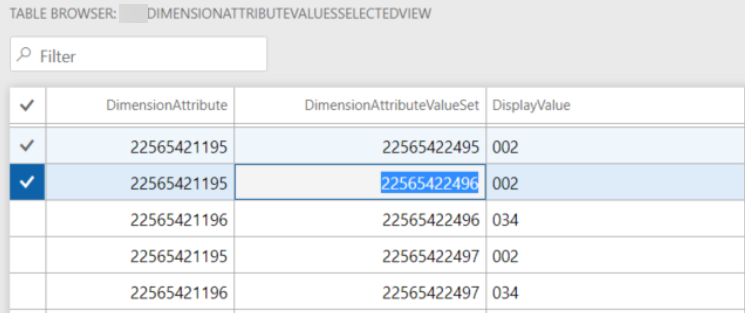
In the aforementioned example, it was CDPDimensionAttributeValuesUnionConcatView view as depicted.


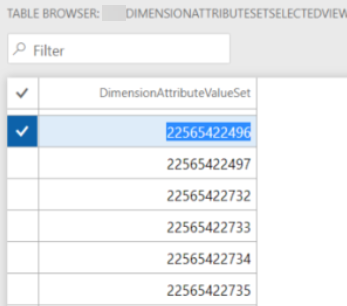
Instead of a series of dependant views, we can create one view as follows (CDPDimAttrSelectedView is just a set of selected attributes; explained in the previous link)


The key point is a computed column method, which creates a final string in the same sequence of attributes as selected in the hierarchy.


private static server str finDimValues()   // X++
    {
        return @"STUFF((SELECT '-' +
                        ISNULL(
                            STUFF((SELECT '-' + t3.DisplayValue
                                    from DimensionAttributeValueSetItemView as t3
                                    JOIN DimensionHierarchyLevel as t17
                                    on t17.DIMENSIONATTRIBUTE = t3.DIMENSIONATTRIBUTE
                                    join myFinDimAttrForAggr t25
                                        on
                                            t17.DIMENSIONHIERARCHY = t25.DIMENSIONHIERARCHY
                                    where
                                    t1.DimensionAttributeValueSet = t3.DimensionAttributeValueSet
                                    and t7.DIMENSIONATTRIBUTE = t3.DIMENSIONATTRIBUTE
                                    order by t17.LEVEL_
                                    FOR XML path('')
                                   ), 1, 1, '')
                            , 'N/A')
     
                    FROM DIMENSIONATTRIBUTE t6
                        JOIN DimensionHierarchyLevel as t7
                                on t7.DIMENSIONATTRIBUTE = t6.RECID
                                join myFinDimAttrForAggr t15
                                    on
                                        t7.DIMENSIONHIERARCHY = t15.DIMENSIONHIERARCHY
                    FOR XML PATH('')), 1, 1, '')";

    }


Thanks a lot for all participants on the forum thread, and especially to Kair84 who helped me with SQL command.


Friday, August 9, 2019

How to filter existing transactions based on a financial dimension value set

Let's assume that we want to see our bank accounts balances grouped by a financial set, which may be different than that set up for your transactions.


For example, existing transactions presume to have values for the following dimension attributes.


However, our selection can be different. For this exercise sake I opted for Business unit and Department.


So, instead of one balance for the whole bank account, we want to get it distributed per every combination of Business unit and Department values.


Another point to consider is the fact that these attributes are not mandatory; in other words, we don't have values for all attributes in all transactions.


It can be easily achieved if we find a way to create a column with all sought dimension attribute values concatenated as depicted.


Generally speaking this is a job a BI solution; however, it is possible to do in D365 by means of Views.

Let's solve this problem step by step.

Fisrt view is for all selected attributes that we should populate values for, exist them or not.


Second, collect all existing values which match our selected attributes.


Then, group all found dimension attribute sets.


Now we create a view based on the latter and sought attributes without relation in outer join. By that we will get a Cartesian product of all possible combinations between them.


At this step we outer join the latter with the found (existing) values. Here we can add a computed column if we want to see something else than just an empty value.


private static server str displayValueWithNA()   // X++
{
    str         sRet;
    tableName   viewName                = viewstr(myDimensionAttributeValuesUnionView);
    str         cDisplayValue  = SysComputedColumn::comparisonField(viewName,
                                                                                viewstr(myDimensionAttributeValuesSelectedView),
                                                                                fieldStr(myDimensionAttributeValuesSelectedView, DisplayValue));
    
    sRet =
        SysComputedColumn::if(SysComputedColumn::isNotNullExpression(cDisplayValue),
                                cDisplayValue,
                                SysComputedColumn::returnLiteral('n/a')
                            );
 
    return sRet;
}


Final view will contain all the values found on the previous step grouped by dimension attribute value set so that in a computed column all values be concatenated in the required order.


private static server str finDimValues()   // X++
{
    return @"STUFF((SELECT '-' + t3.DisplayValue
                from myDimensionAttributeValuesUnionView as t3
                where
                t1.DimensionAttributeValueSet = t3.DimensionAttributeValueSet
                order by t3.DIMENSIONATTRIBUTE
                for xml path('')), 1, 1, '')";
}


Having this view in inner join combination allows you to filter any transactional data by a set of dimensions without coding.


Thursday, May 24, 2018

Simple form for Financial dimension value set lookup

Simple form for Financial dimension lookup.

On any form a consultant can add Fin dim field, which is actually just a rec id, then click on it to see the real value set. (Added FormRef to DimensionAttributeValueSet table.)

If opened as a separate window, the form allows to lookup any fin dim value.


Download AX 2012 XPO file.

Wednesday, April 27, 2016

Update access to Financial dimensions on Project Wizard form

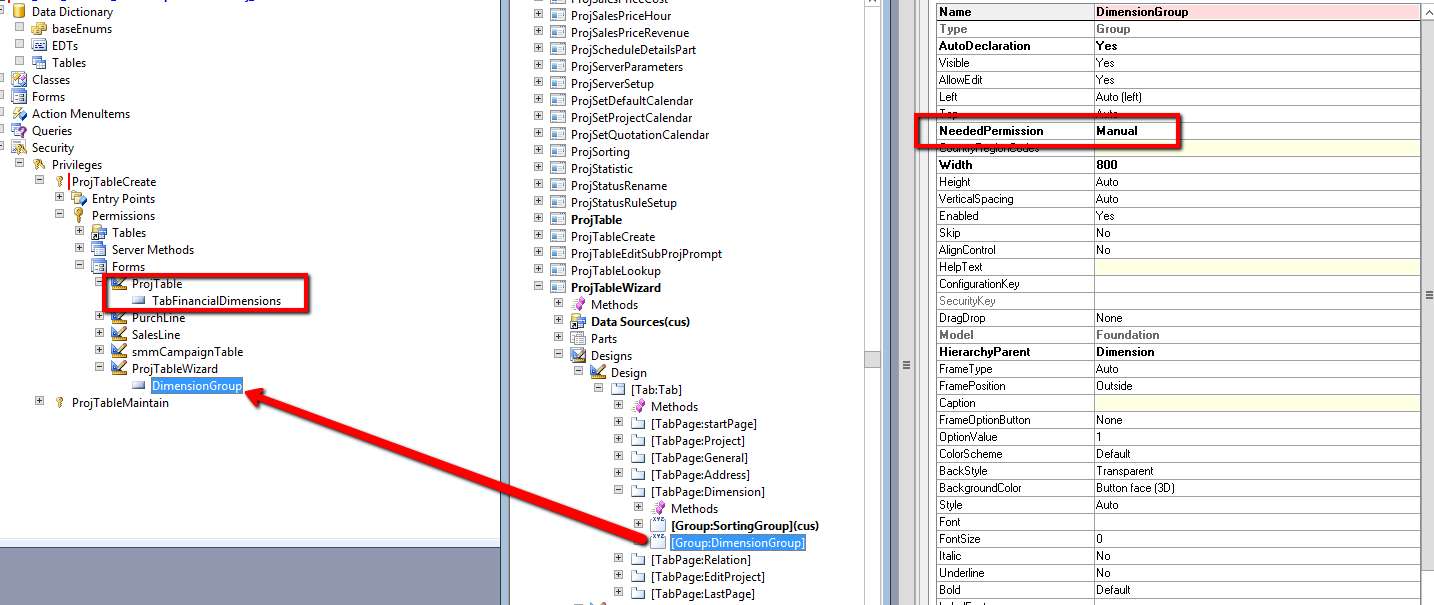
Thanks André I found very fast how to fix access issue to Financial dimensions on Project Wizard form. He explained how to solve a similar problem in this thread https://community.dynamics.com/ax/f/33/t/138100

All detail could be found in MSDN article https://msdn.microsoft.com/en-us/library/gg879980.aspx

Briefly we need to add associated form and their form controls to appropriate security privileges or directly to roles.


As we can see DimensionGroup control requires manually set permission. so let's add it in the same way as it done for ProjTable form.


Now Project manager and other roles containing the same privileges will be able not only to view but also to update financial dimensions in the Project Wizard.

Friday, October 2, 2015

How to lookup and set a new value for Financial dimension

Let's say we need to change a value for one of item financial dimension.

I created a simple form with the item list and their default financial dimensions that are controlled by a standard controller.


There are also two unbound controls that allows to select any related financial dimension attribute and its available value. It is done by means of two edit methods and one lookup method, which can be added to your class and used everywhere you need.


A new chosen value can be set for the item financial dimension by the Set new value button. Actually it uses a method that, again, can be added to your class a static one.

I would like to thank Carsten Glem for his comment on this topic.

Here comes the code for the main methods. Feel free also to download the whole project.