Showing posts with label import. Show all posts

Friday, August 30, 2024

How to get back Import users button in D365FO


 You may start experiencing the following issue with button Import users.


It happens because Microsoft changed their approach to devboxes settings:

As of November 15, 2023, certificates in your Microsoft Entra tenant are no longer installed in new one-box development environments by default. 

You can find more detail on how to install a certificate in this article, but we can use a shortcut using 
D365fo.tools.

Here are the steps:
    

   1) Go to Azure portal and select app registration and create a new one (name the app to be the same as the environment name & leave settings at default) 

   2) The app registration needs to have the following: 

       a) 2 reply URLs > https://<fno-url> & https://<fno-url>/oauth 

       b) add the following API permissions to the App registration: 


Grant above permissions.

3) On the VM for the environment, open PowerShell 

   4) Run the following commands: 

        a) Install-Module D365fo.tools, and accept all the prompts 

        b) New-D365EntraIntegration -ClientId <client-id> (client-id is the app registration id that was created) 

   5) The above command will save a certificate, which then needs to be uploaded to the app registration that was created 


Friday, June 21, 2024

Importing a bacpac file to a development box SQL

 Just to memorize some steps to import a database from a bacpac file.

  1. Download and run the DacFramework.msi installer for Windows
  2. Put the backup.bacpac file close to the SQL database, say, in the root folder on disk G:
  3. Run the bat file. 

@echo Importing a bacpac data to SQL database
c:
cd C:\Program Files\Microsoft SQL Server\160\DAC\bin
SqlPackage.exe /a:import /sf:G:\backup.bacpac /tsn:localhost /tdn:AxDB_Restored /p:CommandTimeout=1200 /TargetTrustServerCertificate:True
pause

Take note about the last option: without it importing fails with the following error.


Friday, August 27, 2021

DMF import records for multiple companies

 Say, we need to import Bank reconciliation records from an Excel file for many target companies at once.

The standard DMF approach does not allow to do so via DMF data entities out of the box.

However, we can easily customize Data Entity copyCustomStagingToTarget method to loop through all companies encountered in an imported file lines.

/// <summary>
    /// Performs a custom copy from the staging table to the target environment.
    /// </summary>
    /// <param name = "_dmfDefinitionGroupExecution">The definition group.</param>
    /// <returns>A container of counts of [new records, updated records].</returns>
    /// <remarks>
    /// When doing set-based inserts, the full defaulting logic from LedgerJournalTrans is not
    /// run. In order to get full defaulting, row-by-row processing must be performed. Since
    /// this method is called specifically from the DIXF framework, the entity in
    /// DIXF can be marked as AllowSetBased=False in order to force row-by-row defaulting
    /// and validation. The trade off is a significant degradation in copy performance.
    /// </remarks>
    public static container copyCustomStagingToTarget(DMFDefinitionGroupExecution _dmfDefinitionGroupExecution)
    {
        CDPBankReconStaging     staging;
        Set                     companySet;
        DMFStagingValidationLog log;


        log.skipDataMethods(true);
        delete_from log
            where 
            log.DefinitionGroupName == _dmfDefinitionGroupExecution.DefinitionGroup && 
            log.ExecutionId         == _dmfDefinitionGroupExecution.ExecutionId;


        update_recordset staging setting TransferStatus = DMFTransferStatus::NotStarted
            where
            staging.TransferStatus  == DMFTransferStatus::Validated &&
                staging.DefinitionGroup == _dmfDefinitionGroupExecution.DefinitionGroup &&
                staging.ExecutionId     == _dmfDefinitionGroupExecution.ExecutionId;

        int64 updatedRecords = 0;
        int64 newRecords = 0;
        // Validating companies
        myBankReconDE_Helper::validateCompany(_dmfDefinitionGroupExecution);
        // Getting the company list to loop through
        companySet = myBankReconDE_Helper::getStagingCompanySet(_dmfDefinitionGroupExecution);

        // the party begins here!
        SetEnumerator se = companySet.getEnumerator();
        while (se.MoveNext())
        {
            SelectableDataArea currCompany = se.current();
            changecompany(currCompany)
            {
                ttsbegin;

                myBankReconDE_Helper::validateTransactionCurrency(currCompany, _dmfDefinitionGroupExecution);
                // do any other necessary logic
                //...
                newRecords += myBankReconDE_Helper::createBankAccountTransactions(currCompany, _dmfDefinitionGroupExecution);
                // making DMF happy
                myBankReconDE_Helper::updateStagingTransferStatusToCompleted(currCompany, _dmfDefinitionGroupExecution);

                ttscommit;
                // Posting
                myBankReconDE_Helper::reconcileAccountStatement(currCompany, _dmfDefinitionGroupExecution);
            }
        }

        return [newRecords, updatedRecords];
    }

Getting company list

/// <summary>
    /// gets a set of all legal entities present in the staging
    /// </summary>
    /// <param name = "_dmfDefinitionGroupExecution"></param>
    /// <returns></returns>
    public static Set getStagingCompanySet(DMFDefinitionGroupExecution _dmfDefinitionGroupExecution)
    {
        myBankReconStaging staging;
        Set companySet = new Set(Types::String);
        while select myCompany from staging
            group by myCompany
            where
             staging.DefinitionGroup == _dmfDefinitionGroupExecution.DefinitionGroup &&
             staging.ExecutionId     == _dmfDefinitionGroupExecution.ExecutionId &&
            (staging.TransferStatus == DMFTransferStatus::NotStarted || staging.TransferStatus == DMFTransferStatus::Validated)
        {
            companySet.add(staging.myCompany);
        }
        return companySet;
    }

Friday, January 5, 2018

AX 2012 Wizard does not update Analysis Serivce Project: workaround

Recently I bumped into a strange issue in AX 2012, which prevents importing Analysis Services Projects to AOT.

Given that this import is an essential part of cubes development and deployment, I decided to find a way to get this thing done.

The issue is in the fact that nevertheless all changes made to your perspective are successfully present in the Wizard tree, they are never saved back to AOT. Therefore, the previous version of your project is always deployed to SQL, no matter what you try to achieve.

The workaround is pretty simple. Make up your perspective, run the Wizard and let it finish its job. Make Deploy option unchecked because it is pointless.


Once the Wizard window is closed, just find your project in the node of Analysis Services Projects and delete it.


Then find a recently created folder in your TEMP directory; this one must contain your recently added artifacts, say, financial dimensions as depicted.


Here we go.


Now just import this particular project back to AOT, and run the Wizard again to deploy the projects.


It is also worth double-checking the project content in Visual Studio before running the Wizard for the second time.


If you missed the target, find the right folder with your added/changed objects.

Now the Wizard should find no changes and just deploy it.


Wednesday, January 20, 2016

Export-Import XPO files

Among our AX mundane chores I would highlight the promotion process. Nevertheless, this changed drastically since AX 2012 started using models and model stores; sometimes, the old good way is in demand, yet.

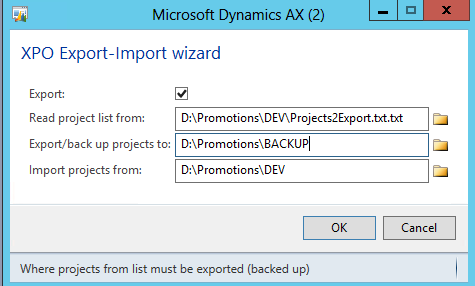
I am talking about promoting your projects between environments via exporting and importing XPO files. First, we export the project from, say, DEV environment to an XPO file. Then we import it to TEST environment with the Definition only option checked. After that we export the current content of this project as a back up. Finally, we re-import the project entirely.

Schematically the process goes as follows:

DEV-MyProject->DEV\MyProject.xpo
TEST<-DEV\MyProject.xpo (definition)
TEST-MyProject->\BackUp\MyProject
TEST<-DEV\MyProject.xpo

Not a big deal when it comes to one-two projects only. Everything changes when you need to cope with a dozen of them... I developed a small class that keeps me lazy by doing all these steps.

You need to set up its parameters for every environment where you need to promote projects.


It reads project names to export-import line by line from a plain text file and processes them one by one.

Note: it works on CUS layer only and without labels; however, it can be easily adapted to your context.

Here is the link to download.