Thursday, August 29, 2013


Wednesday, July 31, 2013
PowerShell Script to Run As A Different User
Short script for PowerShell that allows you to start, for example, Dynamics AX client under a different user account.
The main idea is to store the user's password as a secured string in a file, then to restore it from there and create credentials to launch the program.
First, run the script to save the password:
The following script can be saved in a file like RunDynamicsAXasUSERNAME.ps1 to be run as you need:
I used the following links to create this script: http://blogs.technet.com/b/robcost/archive/2008/05/01/powershell-tip-storing-and-using-password-credentials.aspx
http://jdhitsolutions.com/blog/2012/04/scripting-with-pscredential/
Small update for the case when we want to launch AX with a particular configuration file.
# Please check the following paths
# Absolute path to Configuration file
[string]$DynamicsAXC = 'S:\ConfigurationFiles\MyFavouriteConfiguration.axc'
###############################################################################################
# the password should be saved previously as a secured string with the following script
# Write-Host "Input password..."
# read-host -assecurestring | convertfrom-securestring | out-file C:\Users\USERNAME\Documents\AX-DEVS\Scripts\USERNAMEpwd.txt
###############################################################################################
# Launch the program
echo "Trying to launch AX 2012..."
start-Process -FilePath $DynamicsAXAbsolutePath -argumentlist $DynamicsAXC -Credential $credentials
The main idea is to store the user's password as a secured string in a file, then to restore it from there and create credentials to launch the program.
First, run the script to save the password:
Write-Host "Input password for USERNAME..."
read-host -assecurestring | convertfrom-securestring | out-file C:\Scripts\USERNAMEpwd.txt
The following script can be saved in a file like RunDynamicsAXasUSERNAME.ps1 to be run as you need:
#Alex Voytsekhovskiy 2013-07-29
# Based on the links:
# http://blogs.technet.com/b/robcost/archive/2008/05/01/powershell-tip-storing-and-using-password-credentials.aspx
# http://jdhitsolutions.com/blog/2012/04/scripting-with-pscredential/
###############################################################################################
# This script is to run Dynamics AX under a different user account
# Without user input for credentials
###############################################################################################
[String]$Username = 'DOMAIN\USERNAME'

# Please check the following paths
# Absolute path to Dynamics AX shortcut
[string]$DynamicsAXAbsolutePath = 'S:\Program Files (x86)\Microsoft Dynamics AX\60\Client\Bin\Ax32.exe'

# Absolute path to the secured password file
[string]$PasswordAbsolutePath  = 'C:\Scripts\USERNAMEpwd.txt'

# Get the secured password from the file
$password = get-content $PasswordAbsolutePath | convertto-securestring

# Create credentials for the program launch
$credentials = new-object -typename System.Management.Automation.PSCredential -argumentlist $Username,$password

# Launch the program
echo "Trying to launch AX 2012..."
start-Process -FilePath $DynamicsAXAbsolutePath  -Credential $credentials
I used the following links to create this script: http://blogs.technet.com/b/robcost/archive/2008/05/01/powershell-tip-storing-and-using-password-credentials.aspx
http://jdhitsolutions.com/blog/2012/04/scripting-with-pscredential/
Small update for the case when we want to launch AX with a particular configuration file.
# Please check the following paths
# Absolute path to Configuration file
[string]$DynamicsAXC = 'S:\ConfigurationFiles\MyFavouriteConfiguration.axc'
###############################################################################################
# the password should be saved previously as a secured string with the following script
# Write-Host "Input password..."
# read-host -assecurestring | convertfrom-securestring | out-file C:\Users\USERNAME\Documents\AX-DEVS\Scripts\USERNAMEpwd.txt
###############################################################################################
# Launch the program
echo "Trying to launch AX 2012..."
start-Process -FilePath $DynamicsAXAbsolutePath -argumentlist $DynamicsAXC -Credential $credentials
Monday, January 14, 2013
Friday, November 30, 2012
Generating Sales order confirmation in XML file in AX 2012
Let's say we need to provide one of our vendors with a Sales order confirmation in the form of XML file for the further consuming in their automated system. We suppose your license configuration is OK for that.
First of all, the appropriate service has to be set up in AIF module of AX 2012. (For the previous version, take a look at Microsoft Dynamics AX AIF: Sending Outbound Documents Automatically post) Given that we are going to export this information, we need to create a new outbound port.
Setting new Outbound port
Open the form of Outbound ports (System administration/Setup/Services and Application Integration Framework) to set up one: give it a name and short description to recognize it later among others.
Adapter should be File system adapter to generate XML file.
URI is the path where you can find generated XML files. Of course, AX has to have appropriate rights for this folder.

Now, we are choosing in the drop-list the appropriate service defined in AOT. For the most documents these services are already created; however, if you need to set up some specific or even new document service, please refer to the development manual.
The one we are looking for is SalesSalesConfirmationService. As you can see, all the document services are named in a very evident style: you always know for which document it serves.

Do not worry, if you cannot find this service in the list because it exists but needs to be registered from AOT like follows.
Open Services branch in AOT tree, find this service in it, and register by the context menu item. You need to do it every time you add a new document service. Now this service appears in the list.

Read method will be enough for our job, so we activate our new port. Now we can proceed with the next step:
Adding a batch job maintaining AIF module
For my particular case, I am adding two tasks within it:
- AifOutboundProcessingService responsible for outbound processing; and
- AifGatewaySendService that will save XML files in the folder of URI, defined on the preceding step.

Note that you have to strictly follow the sequence so that a document will be pushed in the Message queue first and then a file will be created.

Do not forget to start the batch job with the right recurrence rules. You find more detail on how to deal with this batch job here.
Print management for clients
Finally, we change the print management for the client to whom we want to send XML files while updating Sales order confirmation.

Choose Print archive as a Destination to avoid the real printing and to generate an XML file.

Since now, when I confirm a sales order for this client I get after within one-two minutes an appropriate XML file in the folder.


For your environment, of course, you need to use your own parameters like those for the file folder or period of time for the batch job.
Also, it is possible to set up Sales order confirmation as a batch job, too.
Let me know if you have any troubles with this!
First of all, the appropriate service has to be set up in AIF module of AX 2012. (For the previous version, take a look at Microsoft Dynamics AX AIF: Sending Outbound Documents Automatically post) Given that we are going to export this information, we need to create a new outbound port.
Setting new Outbound port
Open the form of Outbound ports (System administration/Setup/Services and Application Integration Framework) to set up one: give it a name and short description to recognize it later among others.
Adapter should be File system adapter to generate XML file.
URI is the path where you can find generated XML files. Of course, AX has to have appropriate rights for this folder.

Now, we are choosing in the drop-list the appropriate service defined in AOT. For the most documents these services are already created; however, if you need to set up some specific or even new document service, please refer to the development manual.
The one we are looking for is SalesSalesConfirmationService. As you can see, all the document services are named in a very evident style: you always know for which document it serves.

Do not worry, if you cannot find this service in the list because it exists but needs to be registered from AOT like follows.
Open Services branch in AOT tree, find this service in it, and register by the context menu item. You need to do it every time you add a new document service. Now this service appears in the list.
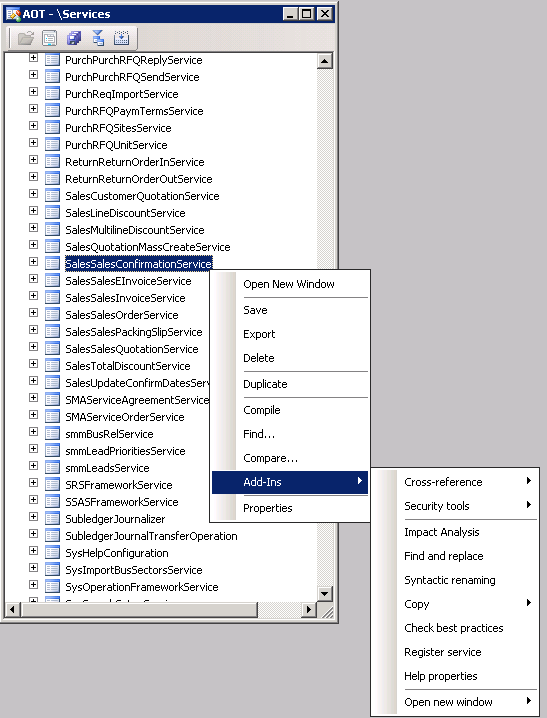
Read method will be enough for our job, so we activate our new port. Now we can proceed with the next step:
Adding a batch job maintaining AIF module
For my particular case, I am adding two tasks within it:
- AifOutboundProcessingService responsible for outbound processing; and
- AifGatewaySendService that will save XML files in the folder of URI, defined on the preceding step.

Note that you have to strictly follow the sequence so that a document will be pushed in the Message queue first and then a file will be created.

Do not forget to start the batch job with the right recurrence rules. You find more detail on how to deal with this batch job here.
Print management for clients
Finally, we change the print management for the client to whom we want to send XML files while updating Sales order confirmation.

Choose Print archive as a Destination to avoid the real printing and to generate an XML file.

Since now, when I confirm a sales order for this client I get after within one-two minutes an appropriate XML file in the folder.


For your environment, of course, you need to use your own parameters like those for the file folder or period of time for the batch job.
Also, it is possible to set up Sales order confirmation as a batch job, too.
Let me know if you have any troubles with this!
Saturday, October 27, 2012
Alice in Wonderland
Every day my "Alice in Wonderland" adventure starts with Ctrl-D with a little help from my friends from http://axforum.info/
Thank you friends! I am still safe and sound!
Каждый день моё приключение алисы в стране чудес начинается с Ctrl-D при поддержке моих друзей с форума http://axforum.info/
Спасибо, друзья! Я всё ещё цел и невредим!
Thank you friends! I am still safe and sound!
Каждый день моё приключение алисы в стране чудес начинается с Ctrl-D при поддержке моих друзей с форума http://axforum.info/
Спасибо, друзья! Я всё ещё цел и невредим!
Monday, July 9, 2012
Monday, June 4, 2012
How to get AOS name to attach to in Visual Studio 2010
When you are going to debug your AX application in Visual Studio 2010, it is easy to choose which AOS to attach to.
There is the application file path in the hint above the name of AOS service.


Subscribe to:
Posts (Atom)

_1074.jpg)


 Posts
Posts

