If you don't have Windows administrator privileges, you can nevertheless open visual studio and run a debugging session. So you can simply import your Windows user and assign admin role to it.
Saturday, January 4, 2020

Saturday, November 30, 2019
How D365FO debugging really looks like

BTW, jokes aside, where can I see the TTS level during debugging?
Wednesday, November 27, 2019
Enum extensions case in D365
Added two new values to an enum in the same model but in two different extensions.
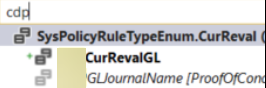
The first one is looped perfectly (see code snippet below), and nothing but an index for the second. However, its value is present in a combobox.

Already built and synchronized the whole world. What else can it be?
Take a look from the SQL side.

There are some old values that I created before but deleted later. All of them are still there.
I had to delete these non-synced values manually from SQL, then added needed values in AOT, and synched DB.
In fact, DB sync is triggered if you have some changes in tables/views only.
Now it is correctly recreated.


BTW there are two good articles about the subject
1) Extensible enums: Breaking change for .NET libraries that you need to be aware of
2) Development tutorial: Extensible base enumerations in Microsoft Dynamics AX 7
The first one is looped perfectly (see code snippet below), and nothing but an index for the second. However, its value is present in a combobox.
[ExtensionOf(formStr(SysPolicyParameters))]
final public class mySysPolicyParametersForm_Extension
{
    public void populateTree()
    {
        DictEnum          policyRuleTypeEnum;
        int               i;
        policyRuleTypeEnum = new DictEnum(enumNum(SysPolicyRuleTypeEnum));


        for(i = 0; i < policyRuleTypeEnum.values(); i++)
        {
            str sym = policyRuleTypeEnum.value2Symbol(i);
            info(strFmt("%1 %2 %3", i, policyRuleTypeEnum.value2Name(i), sym));
        }


        next populateTree();
    }
}
Take a look from the SQL side.
There are some old values that I created before but deleted later. All of them are still there.
I had to delete these non-synced values manually from SQL, then added needed values in AOT, and synched DB.
In fact, DB sync is triggered if you have some changes in tables/views only.
Now it is correctly recreated.
1) Extensible enums: Breaking change for .NET libraries that you need to be aware of
2) Development tutorial: Extensible base enumerations in Microsoft Dynamics AX 7
Wednesday, November 20, 2019
Operating with system defined buttons in form Action pane
Say, we have to reference Edit button.

For this we use the macro #define.SystemDefinedViewEditButton('SystemDefinedViewEditButton')
The whole list is present in SysSystemDefinedButtons macro
Code snippet for your active method in name_DS
Check this article https://docs.microsoft.com/en-us/dynamics365/fin-ops-core/dev-itpro/user-interface/system-defined-buttons

For this we use the macro #define.SystemDefinedViewEditButton('SystemDefinedViewEditButton')
The whole list is present in SysSystemDefinedButtons macro
Code snippet for your active method in name_DS
int active()
        {

            #SysSystemDefinedButtons

            ret = super();

         < ... >
            FormCommandButtonControl editButton = element.control(element.controlId(#SystemDefinedViewEditButton)) as FormCommandButtonControl;
            editButton.enabled(name_ds.allowEdit());

            return ret;
        }
Check this article https://docs.microsoft.com/en-us/dynamics365/fin-ops-core/dev-itpro/user-interface/system-defined-buttons
Friday, November 15, 2019
Best Practice in real life: SysPolicy form as a bad example
Walk the talk, guys! It can save a life one beautiful day!

Happy weekend to everyone

Happy weekend to everyone
Thursday, November 14, 2019
Hidden Rules form part in Policy form
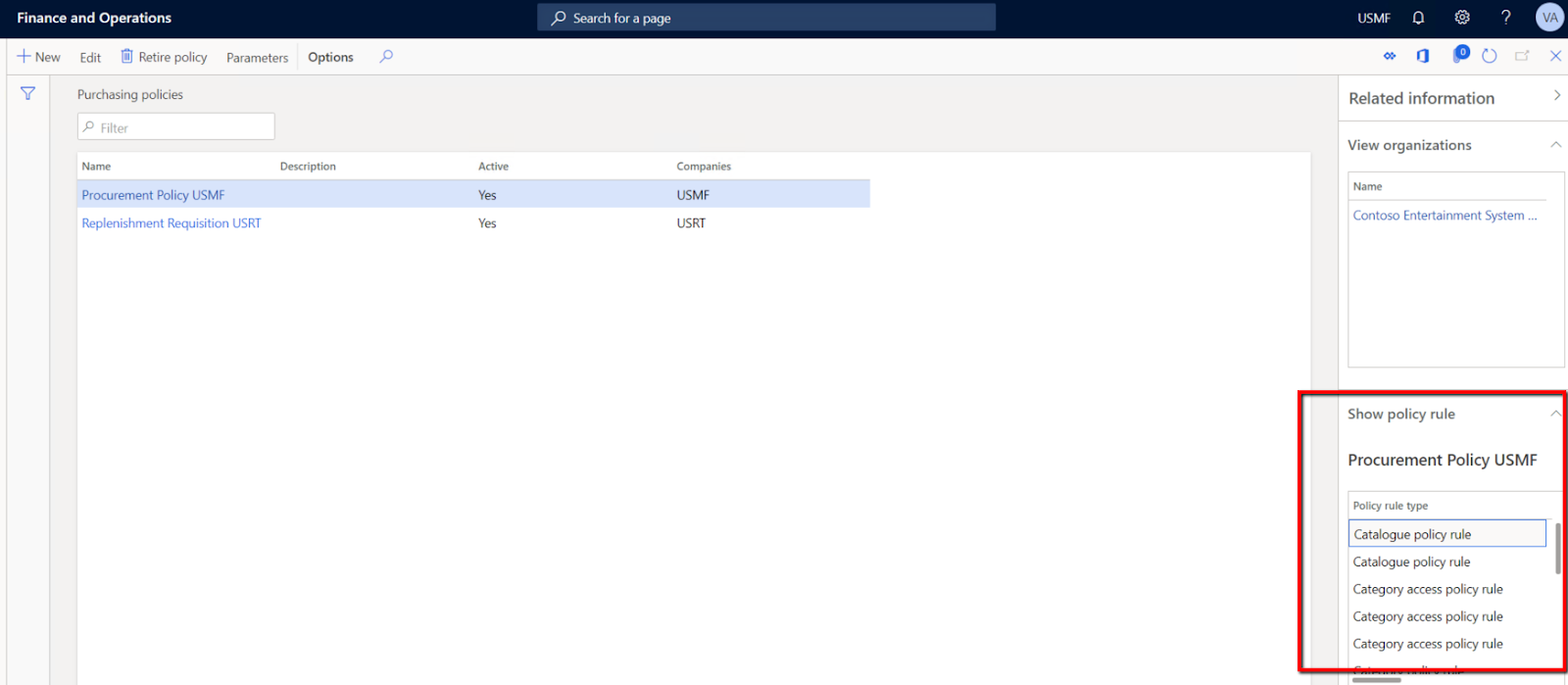
Just discovered that the Policy rules form part is not properly shown in the Policy form.
If you want to get it back, create an extension to SysPolicyListPage and change Part location to Auto


Once it is done, this part will be visible for all kinds of policies, e.g. Purchasing etc.

If you want to get it back, create an extension to SysPolicyListPage and change Part location to Auto


Once it is done, this part will be visible for all kinds of policies, e.g. Purchasing etc.
Saturday, October 5, 2019
Electronic Reporting Webinar Screenshots, Part 1: Building and Debugging Configurations
First of all, I 'd like to thank the Microsoft Localization Team provided this free webinar about Electronic Reporting and Electronic Messages (in Russian).
I simply tried to output the gist of it by taking some snapshots from this very long demonstration.
In the first part, Nikolay Selin explains how the Electronic Reporting (ER) can be set up by showing practical examples of building and testing configurations.
In brief, ER can be used both for incoming and outgoing data flows.

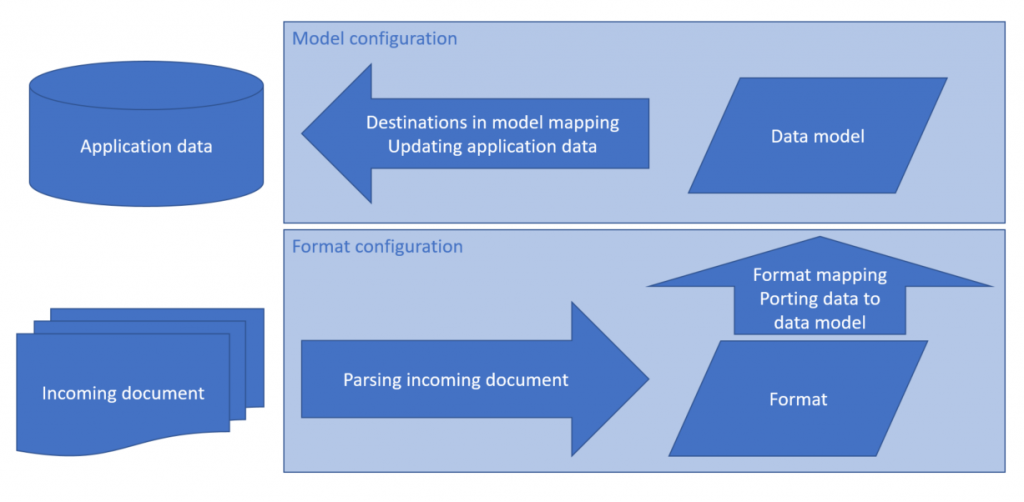 So I tend to consider this functionality not as reporting only but as well as a data exporting/importing tool. Please read the full documentation on Microsoft site.
The main point from the developer's perspective is decoupling data from their presentation.
We build a data model, which is mapped to the actual data in D365 (tables, classes etc) on one side, and to the specific presentation format on the other.
Well, I hope all images are self-explaining.
Building a configuration for Export.
Create a data model

Create a format


Map the data model to data sources

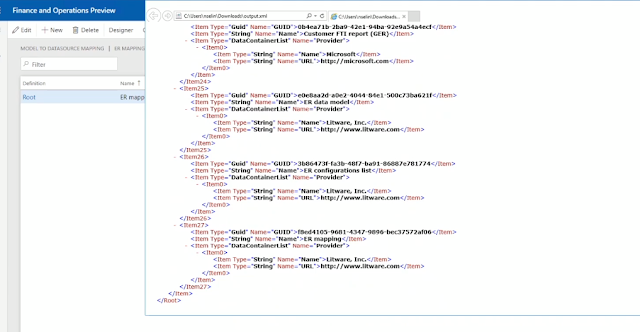
Preview the data to be used in the format
Activate versions

You can use an Excel template for the target format.
Create a template.

Load it to the format

Map it to the data model
 How final results will look like

Building a configuration for Import
Create with the direction to Destination.

Create a format to read from a comma-separated file (CSV). It can be no lines in a file.

Map the format to the data model


and map it to data sources

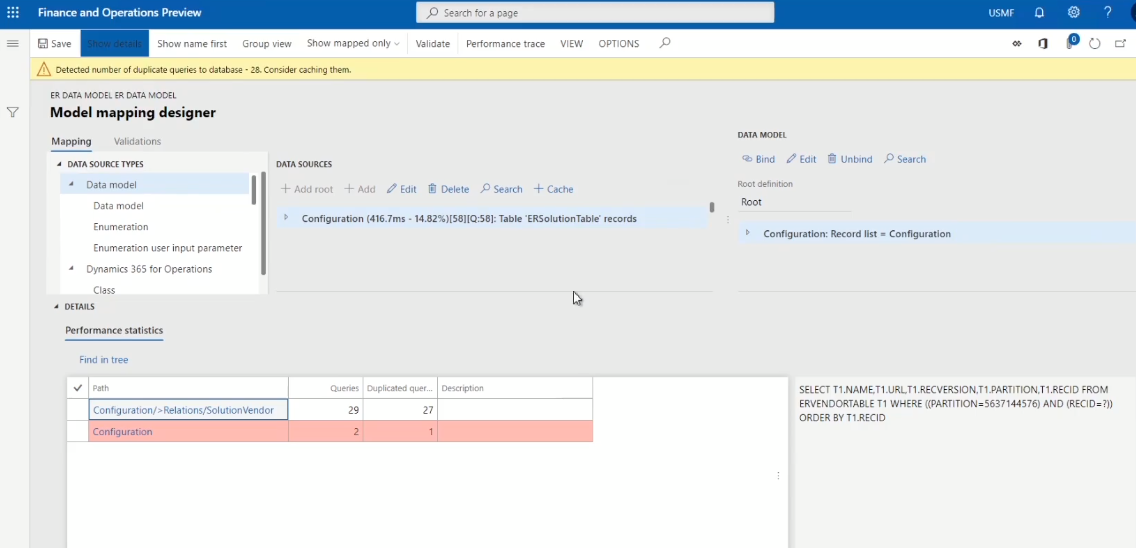
Debugging configurations

Analyze its execution tracing log

as well as execution steps details

Data sourcing and delivering.
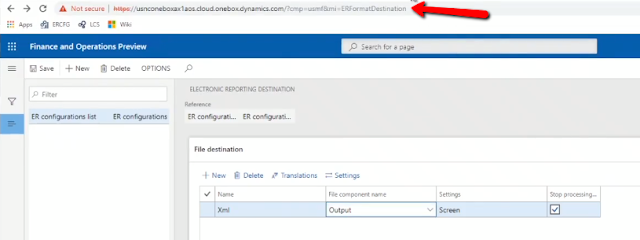
We can use as a source for incoming data or a target for output reports multiple options, something similar to what we have in Report destination for standard reporting, but it includes Sharepoint folders for importing data as well.
Thanks for looking my pictures. Now it is time to practice it at your own!
I simply tried to output the gist of it by taking some snapshots from this very long demonstration.
In the first part, Nikolay Selin explains how the Electronic Reporting (ER) can be set up by showing practical examples of building and testing configurations.
In brief, ER can be used both for incoming and outgoing data flows.
The main point from the developer's perspective is decoupling data from their presentation.
We build a data model, which is mapped to the actual data in D365 (tables, classes etc) on one side, and to the specific presentation format on the other.
Well, I hope all images are self-explaining.
Building a configuration for Export.
Create a data model

Create a format


Map the data model to the format

Map the data model to data sources

Preview the data to be used in the format

Activate versions

You can use an Excel template for the target format.
Create a template.

Load it to the format

Map it to the data model
 How final results will look like
Building a configuration for Import
Create with the direction to Destination.

Create a format to read from a comma-separated file (CSV). It can be no lines in a file.

Map the format to the data model

Set up the target entity parameters for the data model

and map it to data sources

Debugging configurations

Analyze its execution tracing log

as well as execution steps details
Data sourcing and delivering.
We can use as a source for incoming data or a target for output reports multiple options, something similar to what we have in Report destination for standard reporting, but it includes Sharepoint folders for importing data as well.

Thanks for looking my pictures. Now it is time to practice it at your own!
моментальные снимки
Subscribe to:
Posts (Atom)

_1074.jpg)


 Posts
Posts

