Monday, August 19, 2019

How to concatenate financial dimension values in a View for a given hierarchy

Following my previous posting How to filter existing transactions based on a financial dimension value set ,
I would like to show how we can construct a view with all financial dimension values for a given hierarchy, including placeholders for those values are absent.

In the aforementioned example, it was CDPDimensionAttributeValuesUnionConcatView view as depicted.


Instead of a series of dependant views, we can create one view as follows (CDPDimAttrSelectedView is just a set of selected attributes; explained in the previous link)


The key point is a computed column method, which creates a final string in the same sequence of attributes as selected in the hierarchy.


private static server str finDimValues()   // X++
    {
        return @"STUFF((SELECT '-' +
                        ISNULL(
                            STUFF((SELECT '-' + t3.DisplayValue
                                    from DimensionAttributeValueSetItemView as t3
                                    JOIN DimensionHierarchyLevel as t17
                                    on t17.DIMENSIONATTRIBUTE = t3.DIMENSIONATTRIBUTE
                                    join myFinDimAttrForAggr t25
                                        on
                                            t17.DIMENSIONHIERARCHY = t25.DIMENSIONHIERARCHY
                                    where
                                    t1.DimensionAttributeValueSet = t3.DimensionAttributeValueSet
                                    and t7.DIMENSIONATTRIBUTE = t3.DIMENSIONATTRIBUTE
                                    order by t17.LEVEL_
                                    FOR XML path('')
                                   ), 1, 1, '')
                            , 'N/A')
     
                    FROM DIMENSIONATTRIBUTE t6
                        JOIN DimensionHierarchyLevel as t7
                                on t7.DIMENSIONATTRIBUTE = t6.RECID
                                join myFinDimAttrForAggr t15
                                    on
                                        t7.DIMENSIONHIERARCHY = t15.DIMENSIONHIERARCHY
                    FOR XML PATH('')), 1, 1, '')";

    }


Thanks a lot for all participants on the forum thread, and especially to Kair84 who helped me with SQL command.


Thursday, August 15, 2019

How to debug Workflow in D365 without access to Batch.exe

Correct me if I am wrong, but there is no specific article https://docs.microsoft.com about debugging custom Workflow in D365.

So, once I bumped into necessity to test my custom Workflow classes, I found myself unlucky not having admin rights fot Batch.exe (as described here https://ax.docentric.com/debug-workflows-in-dynamics-365-for-finance-and-operations/)

Next search results (in particular this one https://thwidmer.wordpress.com/category/dynamics-ax-2012/page/2/) brought me to the following steps.

I stopped DynamicsAxBatch, which execute actual batch processing in D365.


I added the following simple class and and a menu item button to a form.


class CDPWFDebuggerActive
{
    static public void main(Args _args)
    {
        SysWorkflowMessageQueueManager::runStatic(conNull());
    }

}


Now I run it by the button to execute batch processing in step-by-step mode, and it perfectly hits my breakpoints inside of Workflow handlers once I attached to the standard IIS process.


Wednesday, August 14, 2019

How to get running totals in view

Let's say we need to see bank account balances per day with running totals.

A running totals query is a query in which the total for each record is a summation of that record and any previous records. This type of query is useful for displaying cumulative totals over a group of records (or over a period of time) in a graph or report.

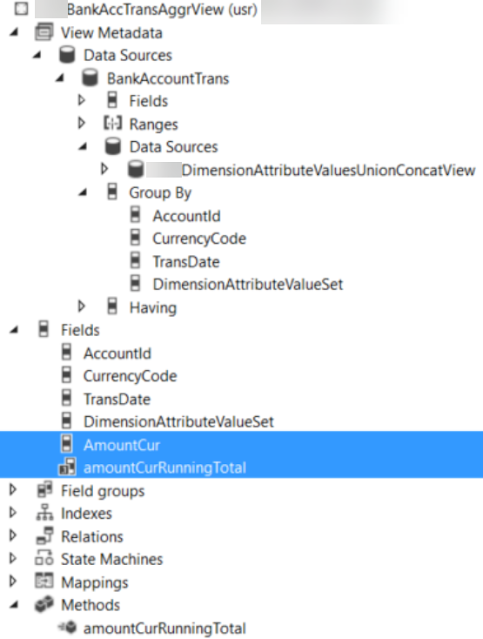
The simplest way to achieve it is to create a view for BankAccountTrans table and add any groupings you need.


In my example, these are Bank account, transaction currency, financial dimension set, and, of course, transaction date.


I use standard aggregation Sum for my daily total and a computed column for running total.


The computed column method reads as follows


public class myBankAccTransAggrView extends common
{
    private static server str amountCurRunningTotal()   // X++
    {
        return "sum(sum(t1.AMOUNTCUR)) OVER (PARTITION by t1.DATAAREAID, t1.ACCOUNTID, t1.CURRENCYCODE  order by t1.TransDate)";
    }

}

It is ready for consumption; enjoy your BI inside of D365!


Friday, August 9, 2019

How to filter existing transactions based on a financial dimension value set

Let's assume that we want to see our bank accounts balances grouped by a financial set, which may be different than that set up for your transactions.


For example, existing transactions presume to have values for the following dimension attributes.


However, our selection can be different. For this exercise sake I opted for Business unit and Department.


So, instead of one balance for the whole bank account, we want to get it distributed per every combination of Business unit and Department values.


Another point to consider is the fact that these attributes are not mandatory; in other words, we don't have values for all attributes in all transactions.


It can be easily achieved if we find a way to create a column with all sought dimension attribute values concatenated as depicted.


Generally speaking this is a job a BI solution; however, it is possible to do in D365 by means of Views.

Let's solve this problem step by step.

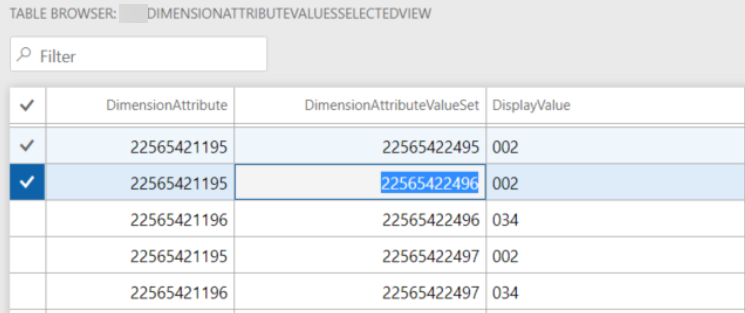
Fisrt view is for all selected attributes that we should populate values for, exist them or not.


Second, collect all existing values which match our selected attributes.


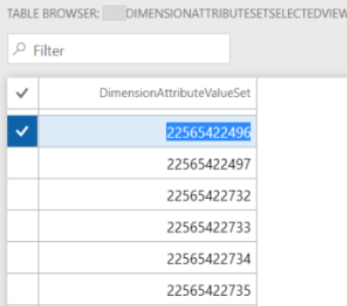
Then, group all found dimension attribute sets.


Now we create a view based on the latter and sought attributes without relation in outer join. By that we will get a Cartesian product of all possible combinations between them.


At this step we outer join the latter with the found (existing) values. Here we can add a computed column if we want to see something else than just an empty value.


private static server str displayValueWithNA()   // X++
{
    str         sRet;
    tableName   viewName                = viewstr(myDimensionAttributeValuesUnionView);
    str         cDisplayValue  = SysComputedColumn::comparisonField(viewName,
                                                                                viewstr(myDimensionAttributeValuesSelectedView),
                                                                                fieldStr(myDimensionAttributeValuesSelectedView, DisplayValue));
    
    sRet =
        SysComputedColumn::if(SysComputedColumn::isNotNullExpression(cDisplayValue),
                                cDisplayValue,
                                SysComputedColumn::returnLiteral('n/a')
                            );
 
    return sRet;
}


Final view will contain all the values found on the previous step grouped by dimension attribute value set so that in a computed column all values be concatenated in the required order.


private static server str finDimValues()   // X++
{
    return @"STUFF((SELECT '-' + t3.DisplayValue
                from myDimensionAttributeValuesUnionView as t3
                where
                t1.DimensionAttributeValueSet = t3.DimensionAttributeValueSet
                order by t3.DIMENSIONATTRIBUTE
                for xml path('')), 1, 1, '')";
}


Having this view in inner join combination allows you to filter any transactional data by a set of dimensions without coding.


Friday, June 14, 2019

How to enable a few fields on a form data source

/// <summary>
/// Helper for form data source functionality
/// </summary>
class FormDataSourceHelper
{
    /// <summary>
    /// Allow edit for given fields only; the rest is non-editable
    /// </summary>
    /// <param name = "_fds">Caller form data source</param>
    /// <param name = "_fields">Container with fields numbers for allowing</param>
    public static client void allowEditFields(FormDataSource _fds, container _fields)
    {
        DictTable                           dictTable;
        int                                 fieldCnt, fieldNumber;
        Set                                 fieldsSet;
        
        if(!_fds)
        {
            throw Error(Error::wrongUseOfFunction(funcName()));
        }

        dictTable = new DictTable(_fds.table());
        
        if(!dictTable)
        {
            throw Error(Error::wrongUseOfFunction(funcName()));
        }
        // everything is fine if we are here already

        // first convert a given container of fields numbers to a set of unique values
        fieldsSet = new Set(Types::Integer);
        for(fieldCnt = 1 ; fieldCnt <= conLen(_fields); fieldCnt++)
        {
            fieldsSet.add(conPeek(_fields, fieldCnt));
        }
        // disbale a field if it is not included in the set
        for(fieldCnt = 1 ; fieldCnt <= dictTable.fieldCnt(); fieldCnt++)
        {
            fieldNumber = dictTable.fieldCnt2Id(fieldCnt);
            if(_fds.object(fieldNumber) && !fieldsSet.in(fieldNumber))
            {
                _fds.object(fieldNumber).allowEdit(false);
            }
        }
    }

}

Thursday, May 30, 2019

Overcome 'The natural key for the table TableName was not found' while creating data entity

When we need to create a data entity for a table without a natural key, say VendTrans, Data entity Wizard shows the following error.


In order to overcome this limitation, we can simply feed the wizard with a copy of a query table with a natural key added. Lately we can just replace one field and its related relation and index in the data entity and staging table.

So, find VendTrans table and create a copy into your model. Delete all methods, add new String field f, make a new unique index based on this field and make this index primary and clustered. You do not need either build or synchronize your solution yet.


Now run the Wizard again with VendTransCopy as a source, and you will get all needed objects created.

Go to data entity view and change its query data source to VendTrans table.


Then rename field f to something meaningful as VendTrans_RecId and point it to VendTrans.RecId.


Add a new Int64 field with the same name in the related staging table


Then use it instead of field f in the index and relation.


You can delete field f as well as VendTransCopy table.

That is it! Now build and synchronize the solution. The new data entity is ready for use.


Wednesday, May 8, 2019

How to change status for multiple batch jobs at once

All you need to change status for multiple batch jobs at once is to move the Change status button from its menu to any place in the grid tab.


Enjoy!