It may be a very good idea to provide your customer with a full documentation about customisations made during the project in .chm file - standard format of Microsoft Dynamics AX help. It can be distributed and maintained easier and more flexible.
By virtue of Arijit Basu (DAX Guy) blog I created this very simple help project DAXHelpCreation.chm which can be decompiled and analysed in order to create your own help project.
It includes DAX Guy posting itself as the first article, then my short notes about .html files preparation and, finally, the entire project from Microsoft Help Kit.
Create the f. manual!
Monday, July 28, 2008

Thursday, July 17, 2008
AppDoc Bug: HTMLHelpFile property is unavailable in DAX2009
As far as I see neither this property nor HTMHelpTopic are available for newly created objects in Application Documentation branch of AOT even if I set HTMLFileEnabled to Yes.
The only cure is to restart the client.
Moreover, after that if you first choose anything but your newly created object in Application Documentation branch (if you e.g. search for it by typing its first letters of the name) or the current element you are working with in the branch loses the focus that is the case - you now cannot change these properties.

Correct me, please, if I missed something.
Wednesday, July 16, 2008
Universal Field Changer (xpo project)
Sometimes we need to change the values of a group of records in a table at once. I hope this project will be useful in this meaning.
 It allows you to choose a table with excluding some of them. After that you can browse the table and open it directly in AOT.
You then can choose a field from the table excluding or not system fields and look through existing values to pick up or just input a new value.
Change function works only with a result of the query which text you can see as well. No checks nor validatings!
Use it at your own risk and do not forget how it can be dangerous for the system to change their fields directly!
The project is moved to. Tested on version 4.0.
Next, I am going to implement it as a class.
Wednesday, July 2, 2008
Go to the main table option
It was something new for me.
To have Go to the main table option working properly you should create a form and appropriate Display Menu Item for the table with the same name.
Otherwise you will get a message like this:
No object specified on menu item XXXX_TableName
To have Go to the main table option working properly you should create a form and appropriate Display Menu Item for the table with the same name.
Otherwise you will get a message like this:
No object specified on menu item XXXX_TableName
Thursday, May 29, 2008
Uninstall SQL 2005 Embedded Edition SSEE
Looking for how to uninstall SQL 2005 Embedded Edition SSEE? Me too. There are a lot of links in the web but I think the best one is the following from Microsoft TechNet.
Uninstalling WSUS 3.0 does not uninstall the database instance
If WSUS 3.0 is uninstalled, the database instance will not be uninstalled. The instance may be shared by more than one application, and will cause other applications to fail if it is removed.
If it is necessary to uninstall Windows Internal Database, the following commands will uninstall the application:
(on 32-bit platforms)
msiexec /x {CEB5780F-1A70-44A9-850F-DE6C4F6AA8FB} callerid=ocsetup.exe(on 64-bit platforms)
msiexec /x {BDD79957-5801-4A2D-B09E-852E7FA64D01} callerid=ocsetup.exeIf you wish to uninstall Windows Internal Database Service Pack 2 from Windows Server 2008, you may do so by means of Server Manager.
However, the removal of the application may not remove the default .mdf and .ldf files, which will cause a subsequent WSUS 3.0 installation to fail. These files can be deleted from the %windir%\SYSMSI\SSEE directory.
Creating additional environment
If you have chosen to create an additional environment by means of copy-paste and backup-restore commands do not forget about one little thing.
1. In MS SQL management utility do backup of the database of the environment that you have chosen as an 'original' one.
2. Create another database and restore your backup to it (restore transactions logs backup too if presented).
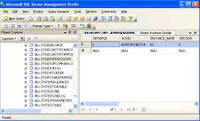
2.1. (A litle important thing!) In the database you should find SysServerSessions table and delete all rows there.
3. Copy-paste C:\Program Files\Microsoft Dynamics AX\40\Application\Appl\Standard or other folder where your original application was installed with other appropriate name. E.g.:
C:\Program Files\Microsoft Dynamics AX\40\Application\Appl\Standard_Test
4. From DAX Setup install additional Object Server having pointed this instance to the recently created database and unchecked Start the AOS Windows service as part of installation option.
5. With Microsoft Dynamics AX Server Configuration Utility choose the new instance of AOS, create a new configuration based on the active configuration and set Application instance to the new one.
1. In MS SQL management utility do backup of the database of the environment that you have chosen as an 'original' one.
2. Create another database and restore your backup to it (restore transactions logs backup too if presented).
2.1. (A litle important thing!) In the database you should find SysServerSessions table and delete all rows there.

3. Copy-paste C:\Program Files\Microsoft Dynamics AX\40\Application\Appl\Standard or other folder where your original application was installed with other appropriate name. E.g.:
C:\Program Files\Microsoft Dynamics AX\40\Application\Appl\Standard_Test
4. From DAX Setup install additional Object Server having pointed this instance to the recently created database and unchecked Start the AOS Windows service as part of installation option.
5. With Microsoft Dynamics AX Server Configuration Utility choose the new instance of AOS, create a new configuration based on the active configuration and set Application instance to the new one.
Wednesday, May 14, 2008
Language in user options
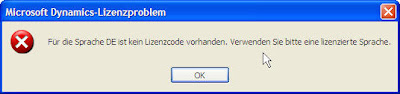
Accidentally changed Language in User options can cause an issue with logging in to the configuration if you have not the appropriate licence for the language. In this case you might see something alike the following.
or or even

The simplest way to fix it is to change the language in User options but if you have no administrator rights or the administrator is yourself... In this case you should use Microsoft Dynamics AX Configuration Utility
Set Configuration command to run at kernel startup parameter to the value, i.g.,
-language=en-us
or another correctly licenced language.

It will override the value chosen in the user option and the configuration then works.
Now, you are allowed to say to the system - Speak My Language!


or
 or even

The simplest way to fix it is to change the language in User options but if you have no administrator rights or the administrator is yourself... In this case you should use Microsoft Dynamics AX Configuration Utility
Set Configuration command to run at kernel startup parameter to the value, i.g.,
-language=en-us
or another correctly licenced language.

It will override the value chosen in the user option and the configuration then works.
Now, you are allowed to say to the system - Speak My Language!

Subscribe to:
Posts (Atom)



 Posts

